Introduction
This article is about auto suggestion control as shown in Figure. In this article we will learn how to make an Auto Suggesation Control using Auto Complete Extender.
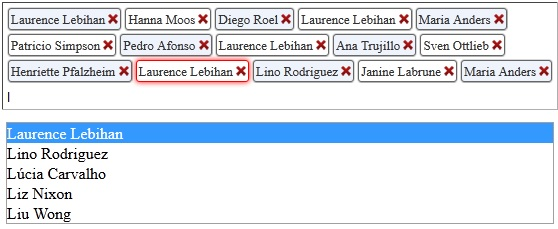
Background
Before going through this article you must have knowledge in C#, ASP.NET Controls (TextBox, HiddenField, Datalist), JavaScript. To know how to download and install Ajax toolkit please go through following link
Description
Steps to be followed:
- Add a ToolkitScriptManager to Webpage
- Add an Update Panel
- Add a Textbox control inside the Update Panel
- Add Auto Complete Extender control to the Textbox
- Add a Hiddenfield Control
- Add a Datalist Control
The design code is given below:
<asp:ToolkitScriptManager ID="ToolkitScriptManager1" runat="server">
</asp:ToolkitScriptManager>
<asp:UpdatePanel ID="UpdatePanel1" runat="server">
<ContentTemplate>
Enter Contact Name<table style="border: thin inset #000000; width: auto;" >
<tr>
<td>
<div>
<asp:DataList ID="DataList1" runat="server"
CellPadding="2" Font-Bold="False"
Font-Italic="False" Font-Overline="False" Font-Size="Small"
Font-Strikeout="False" Font-Underline="False" ForeColor="#333333"
HorizontalAlign="Left"
RepeatDirection="Horizontal" Width="400px">
<AlternatingItemStyle BackColor="White" />
<FooterStyle BackColor="#507CD1"
Font-Bold="True" ForeColor="White" />
<HeaderStyle BackColor="#507CD1"
Font-Bold="True" ForeColor="White" />
<ItemStyle BackColor="#EFF3FB"
Font-Size="Small" CssClass="items" />
<SelectedItemStyle BackColor="#D1DDF1" Font-Bold="True"
ForeColor="#333333"
HorizontalAlign="Justify"
VerticalAlign="Top" Wrap="False" />
<ItemTemplate>
<table border="0" cellpadding="0" cellspacing="0"
width="100%">
<tr>
<td valign="top" align="left" >
<%# Eval("Name") %>
</td>
<td align="right" valign="middle">
<asp:ImageButton ToolTip="Remove"
ID="ImageButton1" runat="server"
ImageUrl="~/delete.png"
onclick="ImageButton1_Click" />
</td>
</tr>
</table>
</ItemTemplate>
</asp:DataList>
</div>
<asp:TextBox Style="float:left" ID="txtCustomer"
runat="server" BorderWidth="0px"
Width="400px"></asp:TextBox>
<asp:AutoCompleteExtender
ID="txtcUSTOMER_AutoCompleteExtender" runat="server"
CompletionInterval="0"
CompletionSetCount="0" DelimiterCharacters=";, :"
EnableCaching="true"
FirstRowSelected="True" MinimumPrefixLength="1"
OnClientItemSelected="OnItemSelected"
OnClientPopulated="HideProcessImage"
OnClientPopulating="ShowProcessImage"
ServiceMethod="GetCustomer"
TargetControlID="txtCustomer"
UseContextKey="True">
</asp:AutoCompleteExtender>
<asp:HiddenField ID="hdnValue" runat="server"
onvaluechanged="hdnValue_ValueChanged" />
</td>
</tr>
</table>
</ContentTemplate>
</asp:UpdatePanel> When we select any item from AutoCompleteExtender the following JavaScript function gets executed,
at OnClientItemSelected and creates an Autopostback for onvaluechanged event of the HiddenField.
function OnItemSelected(source, eventArgs) {
var hdnValueID = "<%= hdnValue.ClientID %>";
document.getElementById(hdnValueID).value = eventArgs.get_value();
__doPostBack(hdnValueID, "");
} The following C# code is used to create a? DataTable in ViewState, add/remove items in the DataTable and Bind it to GridView.
DataTable dtList = new DataTable();
protected void Page_Load(object sender, EventArgs e)
{
if (!IsPostBack)
{
dtList.Columns.Add("Name");
ViewState["Data"] = dtList;
}
}
void SaveAndBindDatatable(DataTable dt)
{
ViewState["Data"] = dtList;
DataList1.DataSource = dtList;
DataList1.DataBind();
}
protected void hdnValue_ValueChanged(object sender, EventArgs e)
{
txtCustomer.Text = string.Empty;
txtCustomer.Focus();
dtList = (DataTable)ViewState["Data"];
dtList.Rows.Add(hdnValue.Value);
SaveAndBindDatatable(dtList);
}
protected void ImageButton1_Click(object sender, ImageClickEventArgs e)
{
ImageButton btn = (ImageButton)sender;
DataListItem dataitem = (DataListItem)btn.NamingContainer;
int index = dataitem.ItemIndex;
dtList = (DataTable)ViewState["Data"];
dtList.Rows.RemoveAt(index);
SaveAndBindDatatable(dtList);
} The following service method is used to populate the auto complete extender,
[System.Web.Services.WebMethodAttribute(), System.Web.Script.Services.ScriptMethodAttribute()]
public static string[] GetCustomer(string prefixText, int count, string contextKey)
{
Controller CtrlObj = new Controller();
return CtrlObj.Customer(prefixText).ToArray<string>();
} From this method you need to return any string array. I've used EntityModel to return array from database.
The following CSS code is used for display of the control
<style type="text/css">
.items
{
display: block;
float: left;
text-align: left;
width: auto;
margin:2px;
box-shadow:0px 0px 1px #666666;
border-radius:3px;
border: thin solid #666666;
}
.items:hover
{
display: block;
float: left;
text-align: left;
width: auto;
margin: 2px;
box-shadow: 0px 0px 5px #0066FF;
border-radius: 3px;
border: thin solid #0066FF;
}
</ The following JavaScript code is used to show/hide the progress image, on populating items in AutoComplete extender:
function ShowProcessImage() {
var autocomplete = "<%= txtCustomer.ClientID %>";
document.getElementById("<%= txtCustomer.ClientID %>").style.backgroundImage = 'url(loading.gif)';
document.getElementById("<%= txtCustomer.ClientID %>").style.backgroundRepeat = 'no-repeat';
document.getElementById("<%= txtCustomer.ClientID %>").style.backgroundPosition = 'right';
}
function HideProcessImage() {
var autocomplete = "<%= txtCustomer.ClientID %>";
document.getElementById("<%= txtCustomer.ClientID %>").style.backgroundImage = 'none';
} Conclusion
Thank you for reading this article. Please comment some suggestion to make this article more interesting.
Source: http://www.codeproject.com/Tips/618849/Auto-Suggestion-Control-Like-in-GMail-Hotmail-Face
neil degrasse tyson neil degrasse tyson davy jones death born this way foundation lytro camera lytro camera andrew brietbart

কোন মন্তব্য নেই:
একটি মন্তব্য পোস্ট করুন